Getting started
The Overview page
Read the headline figures, work the attention list, and pick up whatever you left unfinished.
On this page
Read the four headline figures
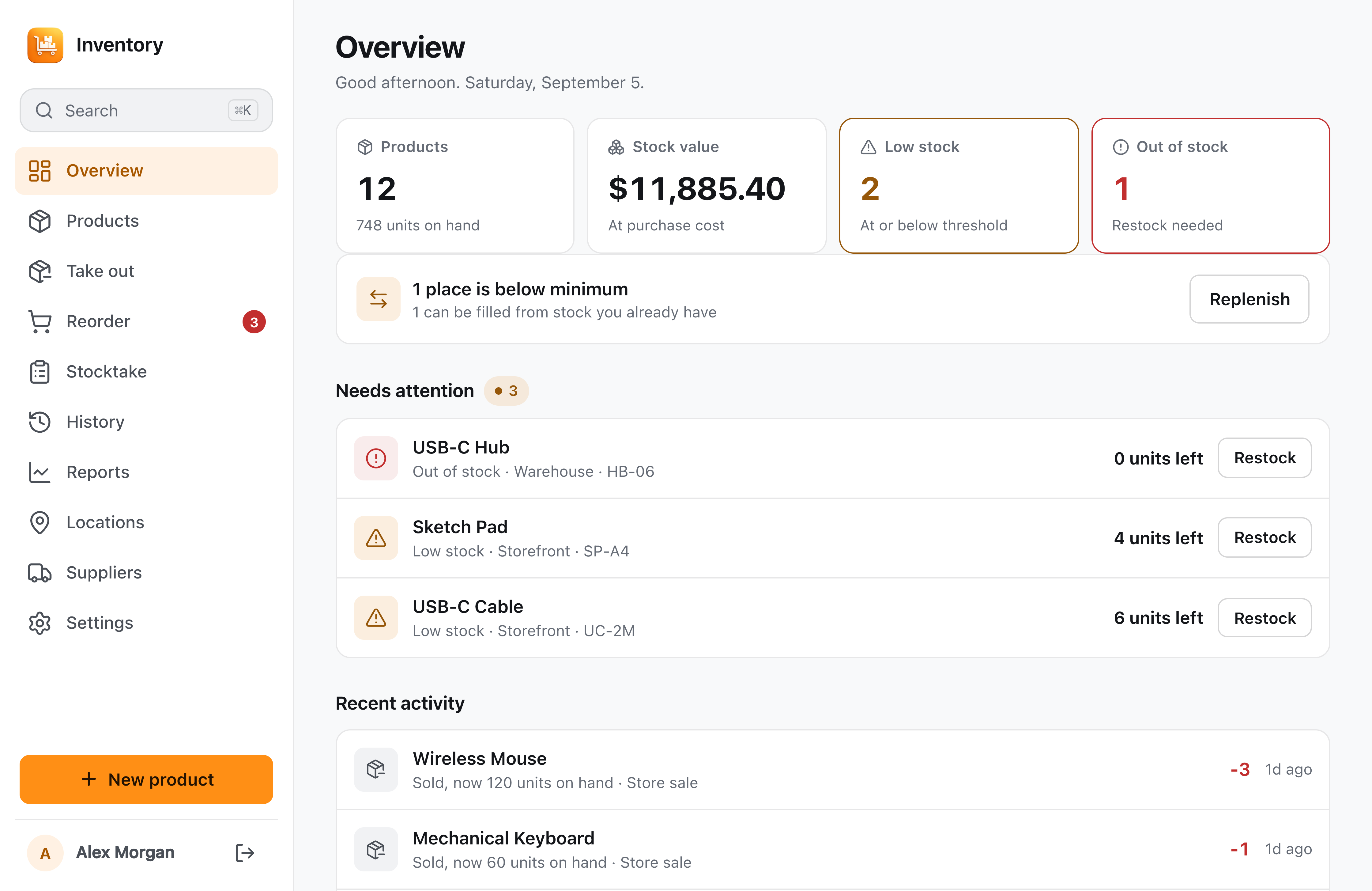
Overview opens with four tiles. Products counts the products you stock, with the units on hand beneath it. Stock value totals what those units cost you, at purchase cost rather than at what you sell them for. Low stock and Out of stock count the products at or below their threshold and the ones at zero.
Only products counted in items add into the units figure. Anything measured in kilograms, litres, or metres is reported separately as a count of measured products, because adding kilograms to pieces would produce a number that means nothing. Archived products stay out of all four tiles.
Work the attention list
Needs attention lists the products that are out of stock or low, emptiest first, up to six at a time, with a link into Reorder when there are more. Each row offers Restock, which opens the receive dialog for that product.
A product with enough already on its way shows an Ordered badge instead of a button. That badge is worked out the same way the Reorder page works out its list, so the two never disagree: if Reorder would still ask you to buy some, the badge does not appear.
Below it, Expiring soon appears once a product tracks expiry dates and has stock expired or due within 30 days, with a Remove action already tagged as expired.
See where stock is in the wrong place
When a location holds less than the minimum you set for it, Overview says how many places are short, how many of them can be filled from stock you already hold, and how many need buying instead. Replenish opens the Locations page, where the suggested transfers live.
This is the shortage no total can show. A shop shelf can be empty while the stockroom is full, and both count as in stock until a minimum makes the difference visible.
Pick up what you left, and see what just happened
A take-out basket or a stocktake in progress gets its own card at the top, with the number of lines or the count so far and a Resume button. Both sessions save themselves as you work, so a locked phone or a closed tab loses nothing.
At the bottom, Recent activity shows the last eight saved changes with the quantity that moved and how long ago. Selecting a row opens that product’s stock dialog; View all history opens the full log.
On a brand new account, this page shows a short setup list instead: add a product, import a CSV, create locations, or add suppliers.