Getting started
Getting started with Inventory
Go from your first sign-in to a product with a checked opening balance.
On this page
Sign in and choose your starting point
Open Inventory and continue with Puter. On a new, empty account, the welcome screen offers Set up my inventory or Explore with sample data. Setup asks which currency you buy in; this is used for purchase costs, prices, and stock value.
Sample data gives you products, locations, and activity to explore. It is saved in your account. Use the sample banner’s Start fresh action when you are ready to remove it and begin your own records.
Create a small, checked starting inventory
- Open Locations and add the places where stock is held.
- Open Products and create a product with a name and a stable SKU.
- Choose its unit, enter its purchase cost, and set its location and opening stock.
- Open the product’s page and compare its location balances with a physical count.
A new product starts with one location and one opening quantity. Further places appear as you receive or move stock into them, so each change is recorded rather than typed in as an opening balance.
If you already have a spreadsheet, start with a small CSV import and check the preview before importing the rest.
Find your way around
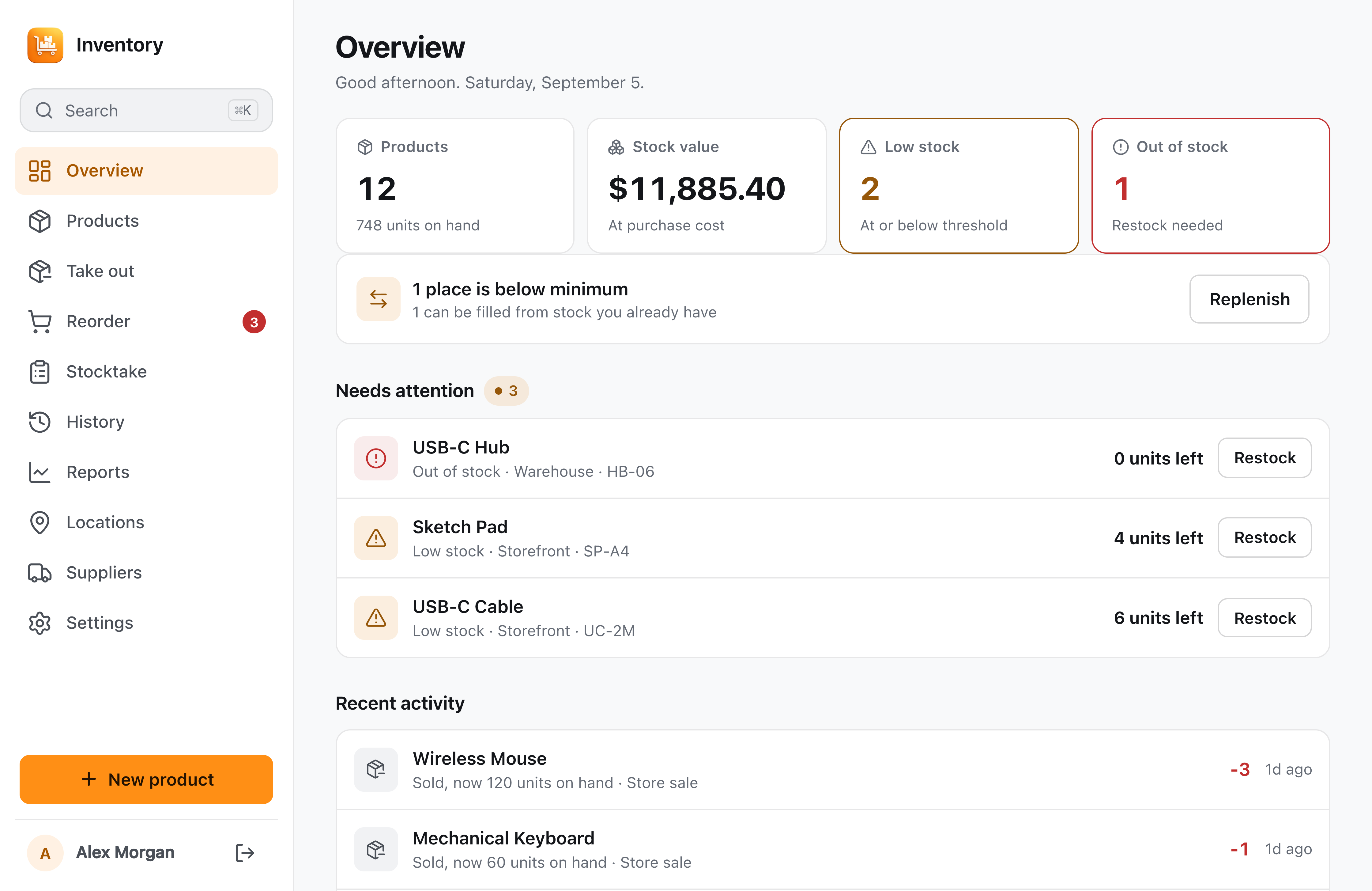
Overview brings stock value, alerts, replenishment needs, and recent activity together. Products opens the catalog; Reorder groups purchasing needs by supplier; History explains saved changes.
On a phone, additional views such as Take out, Stocktake, Reports, Locations, Suppliers, and Settings are available from More. Quick search, in the sidebar or with Ctrl/Cmd + K, finds a product by name, SKU, or barcode, along with suppliers, locations, and common actions. The Products list has its own search box, which also matches categories and shelf codes.